
How to Download Kuaishou / Kwai Videos on PC & Mac (Free, No Watermark, HD/4K, 2026)
You must be here to learn how to download Kuaishou or Kwai videos on your PC or laptop, because there is no built-in download button in the app or on the website; it’s how Kuaishou has built the platform.
But you don’t need to worry; this guide covers everything you need to know to download Kuaishou or Kwai videos fast using our Kuaishou video downloader and save them directly to your PC or Mac, in HD or 4K, completely watermark-free. You don’t need any software to install; no account is needed just a link and a browser; that’s it.
Key Points / TL;DR
- 100% Free & Browser-Based — no software or extensions to install
- No Watermark — original, clean MP4 files, watermark-free
- HD & 4K Quality — download in the highest resolution the creator uploaded
- Batch Downloading — paste multiple Kuaishou video downloader links at once, no repeating steps
- No Login Required — no account, no personal data collected
- Works on Windows & Mac — same simple process on both
What Is Kuaishou — Why People Want to Save Its Videos on PC
Kuaishou, known in China as 快手 (Kuài Shǒu), meaning Fast Hands, is internationally known as Kwai. It was founded in 2011 by Cheng Yixiao and Su Hua, and later became part of Kuaishou Technology, which later went public on the Hong Kong Stock Exchange. It has 770 million monthly active users and 410+ million daily active users from China, Southeast Asia, Brazil, and the Middle East.
Kuaishou has everything from comedy and music to tutorials, live-selling, and everyday vlogs by creators. Most people want to watch Kuaishou videos on their PCs and laptops more than on mobile devices; here is why.
- Offline viewing: you can watch without wasting your mobile data
- Building a reference library: you can save tutorials or clips that you can visit later
- Saving content before it disappears: some creators delete videos, and once it’s gone, it’s gone
- Editing projects: importing a clean video straight into editing software is far easier from a PC than a phone, and it’s especially useful if you are part of the growing creator economy repurposing content for your own channels
- Easy sharing: send a video to someone who doesn’t have the Kuaishou or Kwai app installed, using our Kuaishou video downloader online
What You Need Before You Start
You don’t need any software or technical app; here is everything you want to start.
- The Kuaishou or Kwai video URL (copied from the app or browser)
- Any browser on your PC or Mac such as Chrome, Firefox, Safari, or Edge
- A stable internet connection
- Free local storage space on your computer
You don’t need any account, no app, no sign-up is required, just a PC and a link from our Kuaishou video downloader.
Can You Download Directly From the Kuaishou App or Website
Yes and no. It depends on the creator; if the creator has enabled the save option, you can download, but if the creator has disabled the save option, you can not save videos. That’s how Kuaishou works.
On PC or Mac, there’s no official desktop app in any country; instead, you can watch Kuaishou videos on the web on kuaishou.com, but you can not download or save videos. The best way to download Kuaishou videos is to use our dedicated kuaishou video downloader tool.
Why Use a PC Instead of Mobile
If you save Kuaishou or Kwai on your phone, it is okay, but if you are a content creator and download videos in high quality for editing, then a PC is the better choice. Here is why.
Superior File Management & Storage
On a PC, when you download anything, it goes straight to the folders. This makes it easy to organize your videos by dates and creators, and you can also rename the files when you need them; you can easily find them. But on mobile, your downloads get mixed with your personal data, which makes things messy, and it becomes much harder to find what you have saved in your local storage.
Lossless Quality, No Compression
Mobile always compresses files to save space, which means you are not getting the full video in 4K quality. But on PC, you get the actual source file; there is no automatic compression, no quality loss, and a 4K download stays in 4K.
Seamless Editing Workflow
If you download Kuaishou videos to edit them by combining multiple videos, trimming clips, or adding subtitles using software like CapCut, it is way smoother on PC and Mac than on a phone’s little screen. Having the file already saved on your PC skips the extra step of transferring your video from your phone, making things easier, and you can take that time to edit your videos in high quality.
Multitasking & Speed
It is one of the best advantages that a PC provides you; simply open Kuaishou in one tab and our Kuaishou video downloader online in another tab and just copy-paste in seconds, and you can also drag your file directly to your editing software; that’s it.
Saves Your Phone’s Storage
On PC, you can download as many videos as you want in high quality without worrying about local storage, but on a phone, large videos in 4K can slow down your phone; there will be no space for your personal data. That’s why a PC is a better option for storing downloads.
How Our PC Downloader Compares to the Mobile App
Here is why you should use PC download as compared to the mobile app.
| Feature | PC/Mac Downloader | Mobile App (In-App Save) |
|---|---|---|
| Watermark | Never | Usually still has one |
| Max quality | Up to 4K | Depends on device/app version |
| Batch downloading | Yes, multiple links at once | No, one video at a time |
| Works when creator disables save | Yes | No |
| Login required | No | Requires Kuaishou account |
| File management | Goes straight to your Downloads folder, easy to organize, saved to local storage | Buried in phone gallery with other photos/videos |
| Editing-ready | Yes, drag straight into editing software | Needs to be transferred first |
Bottom line: if you want quick, watermark-free videos in HD quality, you should use our kuaishou video downloader because it gives you more control and you can download up to 4K without any storage issues.
Step-by-Step Guide: Download on PC & Mac
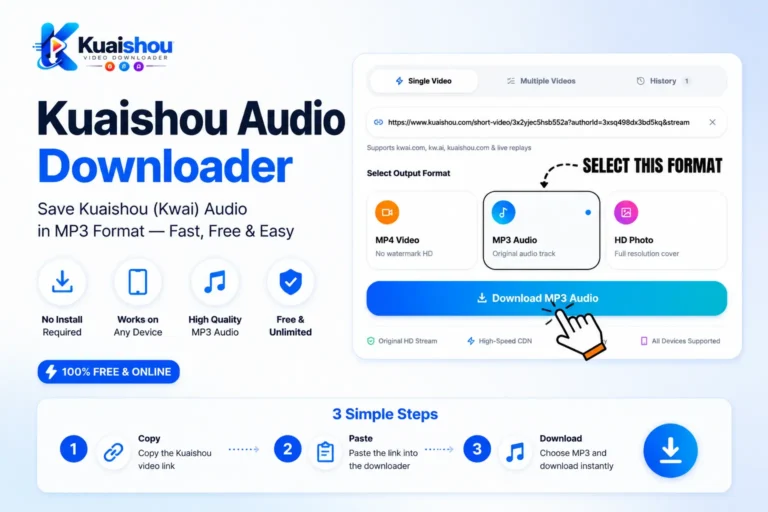
For PC and Mac, here is the quick three-step guide through which you can easily get your watermark-free video.
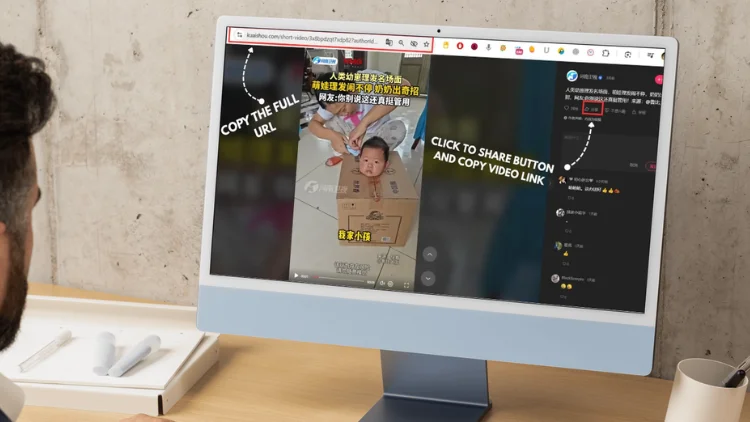
Copy the Video Link
Simply open Kuaishouor Kuaishouin your browser and find the video you want to download, then click the share icon and copy the video URL. If you are using Kuaishou on the web, you can copy the link from the address bar at the top. You can press Ctrl+C (Windows) / Cmd+C (Mac) on your keyboard.
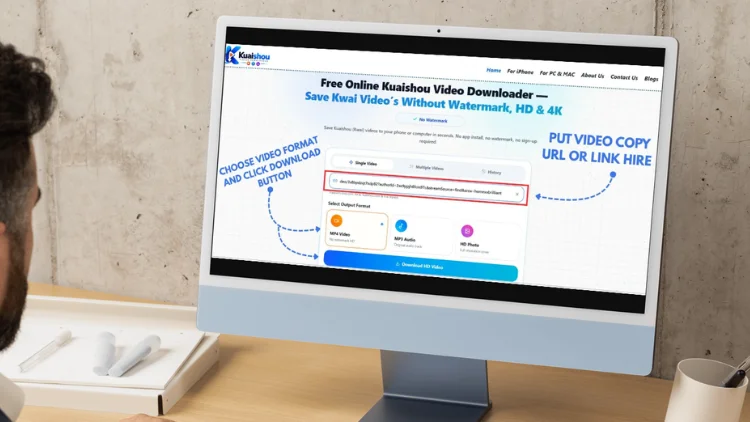
Paste It Into Our Downloader
Now go to our free Kuaishou/Kwai videos downloader, and you will see an input box on the homepage. Now just paste the link by pressing Ctrl+V (Windows) / Cmd+V (Mac), and the link will paste into our downloader. Click Download.
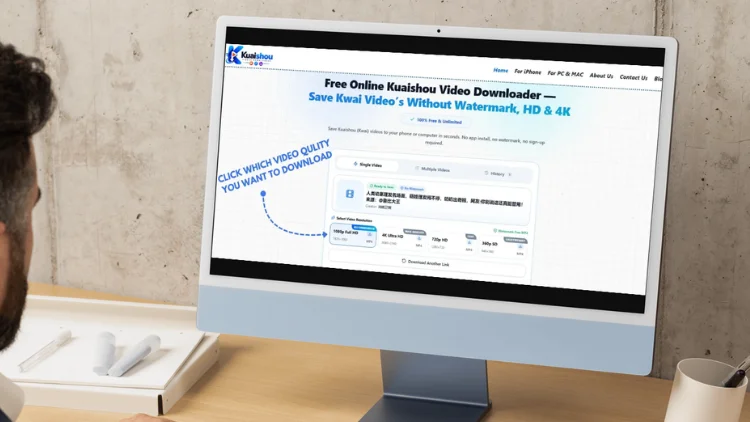
Choose Quality & Download
Now that your video is processed, you will see the available quality options, like 720p or 1080p HD, SD, or up to 4K. Now click Download; the video will be downloaded and saved directly to your local storage on PC, watermark-free.
Batch Downloading Multiple Videos It’s one on PC & Mac
If you have become tired of downloading videos one by one with the links, you should use our batch downloader feature. Paste multiple links, and within a few minutes, our batch downloader will give you back clean, watermark-free videos in 4K. Steps are given below.
How to Batch Download on PC
- Simply copy the URLs of all the videos you want to save.
- Now paste all your links into our batch box next to single.
- Click Download; our free online tool will fetch the videos from Kuaishou servers and will automatically save them to your local storage together.
Which Video Quality Should You Choose
Here is the complete breakdown of quality, which one is best, and which you should choose.
| Quality | Best For | Approx. File Size |
|---|---|---|
| SD (480p) | Quick sharing, smaller file size | ~10–20 MB |
| HD (720p) | General viewing on a laptop screen | ~30–50 MB |
| Full HD (1080p) | Sharp playback, good for reposting | ~80–120 MB |
| 4K Ultra HD | Editing projects, large screens, best possible quality | ~200 MB+ |
Our tool always provides you with the original quality that was uploaded by the creator. Most importantly, if the creator has posted in 4K, you will get it in 4K, and our tool always provides the video in the highest quality available.
Quick tip: if you want to save videos for just watching or saving for offline viewing, then HD is enough, but if you are editing and reposting them professionally, then you can go for 4K.
Alternative Method: Browser Extensions
If you download Kuaishou videos regularly, then using a browser extension will save time. It adds a download button on the page through which you don’t need to copy the link or open the downloader every time. You can use the extension like Video DownloadHelper, available for Chrome and Firefox.
But you need to know that you will have to keep the extension updated and also give permission so it can detect your page, and the video quality depends on the extension — unlike our kuaishou video downloader online, which always shows the actual source file quality without needing any extra permissions.
What to Do After Downloading
When your video is downloaded to your PC, here is what you can do with it.
Watch it in the best quality
When your video is downloaded, you can use VLC Media Player to watch it in high quality with more features like playback speed control, subtitle support, and format compatibility that other media players do not provide.
Edit it cleanly
You can use the downloaded watermark-free video to edit it in CapCut, Premiere Pro, or DaVinci Resolve for reaction content or compilations.
Upscale it if needed
If you have downloaded your video in a “720p” or lower version, you can use an AI upscaling tool like Topaz Video AI to polish your video quality closer to 4K.
Add subtitles
If you are a content creator and you want to add subtitles to your videos, you can use tools like CapCut or Premiere Pro or another online free subtitle generator.
Convert the format
You can also use free tools such as HandBrake or VLC if you want something other than MP4, such as MOV, AVI, WebM, or whatever your platform requires.
Archive and back it up
You can also move your videos to an external SSD/HDD or cloud storage like Google Drive or Dropbox, which will help you keep everything without losing your data.
Is It Legal to Download Kuaishou Videos
Yes, if you are downloading Kuaishou videos for offline viewing or personal viewing, this is totally fine in all countries, similar to how copyright law and fair use generally treat personal, non-commercial use of downloaded content. But there are some boundaries you must keep in mind:
- Never upload another creator’s content and claim it as your own
- Don’t use the downloaded videos commercially without the creator’s permission
- Don’t redistribute content at scale without the creator’s permission
- Don’t strip watermarks and act like it’s your own content; it’s against Kuaishou’s Terms of Service
Troubleshooting Common PC/Mac Download Issues
Here are the common troubleshooting download issues and the fix for every problem a user can face.
Browser Blocking the Download
This is because sometimes the browser itself adds a layer of caution that blocks the download. You don’t need to worry about this. You will see a small warning near the address bar at the bottom of the screen, and click Allow or Keep to let the download continue.
Antivirus False Positives
Sometimes the antivirus software flags an MP4 file download as suspicious due to extra security checks for a new file. To fix this, pause your antivirus for some time and let the download finish; then you can turn it back on.
Downloader Stuck on Processing
If your download is stuck, this is due to a slow internet connection. Turn your internet off and on, or refresh the page (F5 on Windows, Cmd+R on Mac) and paste your URL again.
Where Did My File Go? (Windows vs Mac)
- Windows: Open File Explorer and click Downloads in the sidebar; you will find it right there, saved to your local storage.
- Mac: Open Finder and look for the Downloads folder. After downloading, you will find it in the sidebar or your dock.
Link Not Found (Private/Regional)
If this appears, “video not found,” this is because of two reasons: first, the creator’s video is private, and second, the video is restricted in your region. Only public videos can be downloaded using our kuaishou video downloader.
Video Has No Sound
If your video has no sound, this is because the original video was uploaded with no sound and your download is correct.
Why Our Downloader Is the Best Choice for PC & Mac
Our tool is the best choice for you in 2026 because we offer everything that other tools can not provide. Mentioned below.
| Feature |
Our Downloader | Typical Downloader Tool | Kuaishou Mobile App |
|---|---|---|---|
| Watermark | Never | Sometimes still there | Always there |
| Max quality | Up to 4K, original | Usually capped lower | Depends on device |
| Batch downloading | Yes | Rarely supported | No |
| Formats | MP4, MP3, GIF | Usually MP4 only | MP4 only |
| Software to install | None — fully browser-based | Sometimes required | App required |
| Login required | Never | Sometimes | Yes |
| Data stored | Nothing, ever — no cloud storage or logs kept | Varies by tool | Tied to your account |
Bottom line: our Kuaishou video downloader is an all-in-one package, which provides you with no watermark, real 4K, multiple formats, batch support, and zero installs or accounts, free of cost, where other tools only offer one or two at a time. Some desktop software like 4K Video Downloader supports similar features but requires installation, while ours works entirely in your browser.
Frequently Asked Questions Related PC & Mac
Conclusion
Now you have seen why downloading Kuaishou videos on PC and Mac is way better than mobile. You can download Kuaishou videos with better management, lossless quality, smooth editing without any storage issues, no matter if you are downloading in 4K on PC.
Most importantly, always follow Kuaishou’s Terms of Service while downloading because respecting creators’ content keeps you safe and fair for all the other users.
Our Kuaishou video downloader offers you all the features, like no need to install any app and no account required. Just paste the link and get your clean, watermark-free video in 4K quality on your PC and Mac.
Update Log
Guide reviewed and confirmed accurate against the latest browser versions and Kuaishou/Kwai platform behavior. Added the batch downloading section and expanded the troubleshooting list based on the most common issues reported by PC and Mac users.