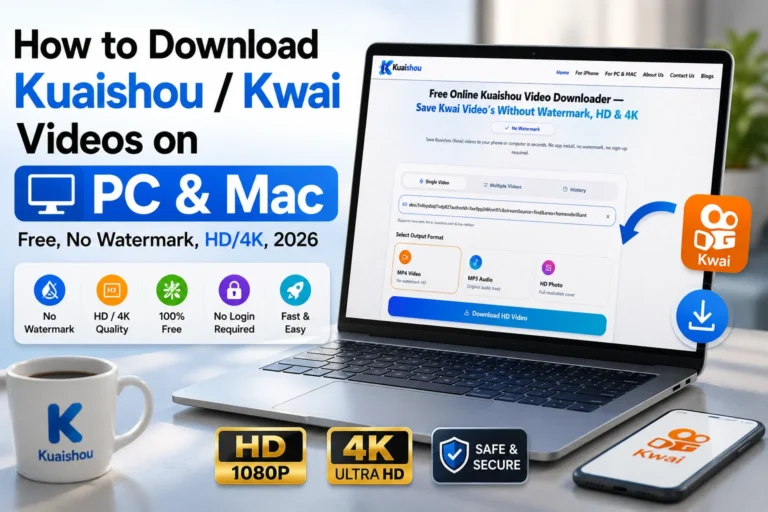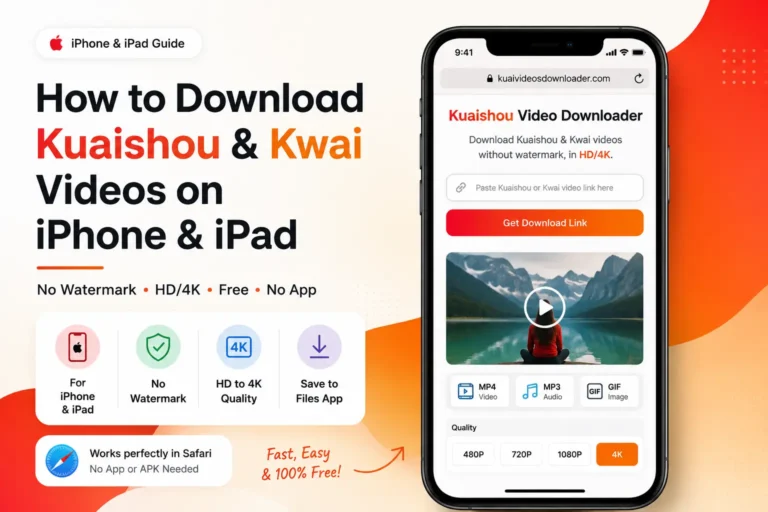
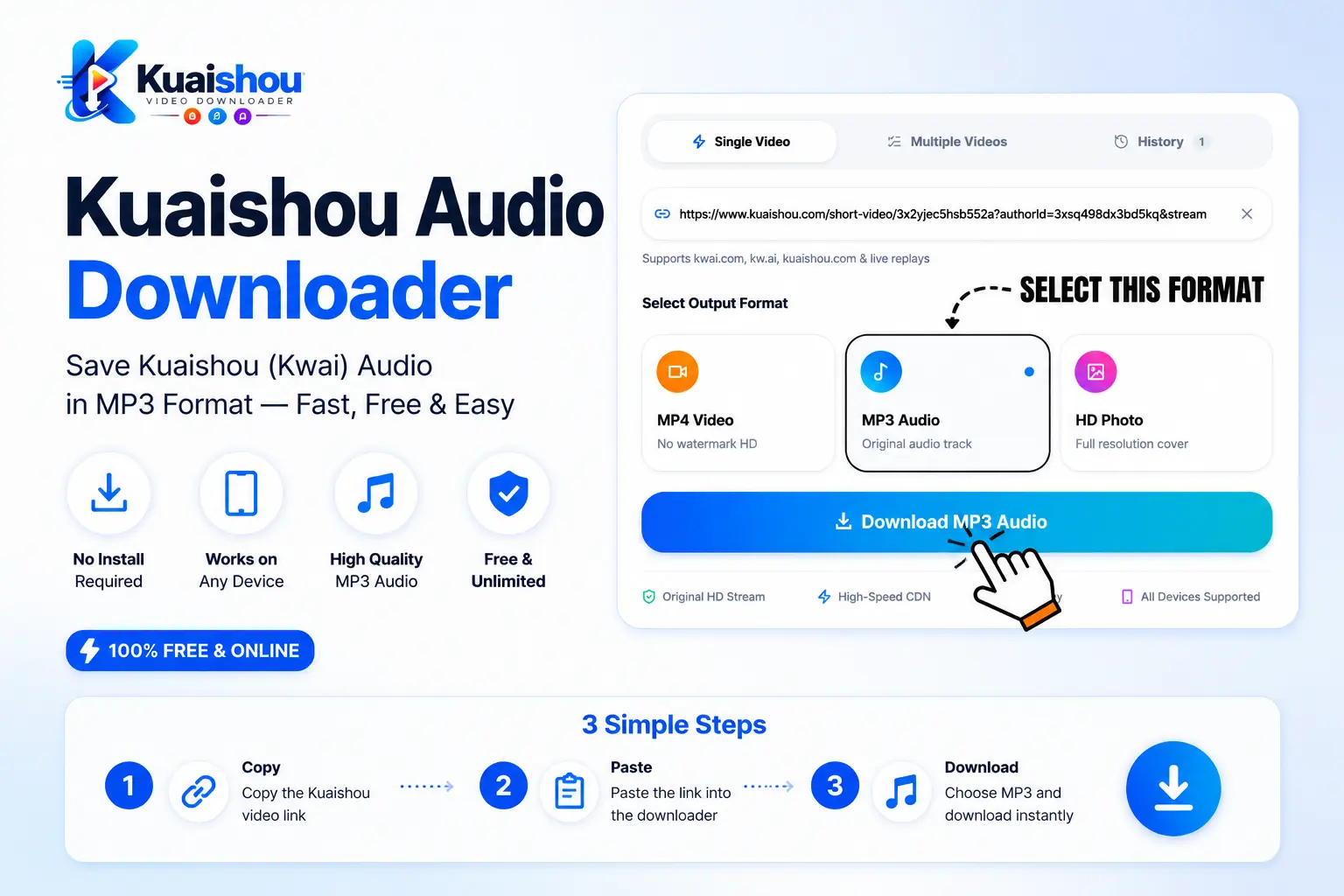
How to convert and download kuaishou/kwai videos in MP3 (Free, 2026)
Extract trending music, voiceovers, or background tracks from Kuaishou and Kwai videos and save them as high-quality MP3s for offline listening or editing.
You found a sound on Kuaishou or Kwai. It can be trending music, a funny voice-over, or a background track you want to save, but the main problem is that you only want the audio, and Kuaishou does not allow direct audio extraction. Good news: Downloading the audio only is way easier than you think.
In this guide, I will show you how to convert Kuaishou videos to MP3 completely free. You don’t need to install any app or create an account. Just follow this guide completely.
Why Download Kuaishou Audio Separately
Sometimes people find a unique sound and want to save the audio separately from the video, not the full video; there are a few reasons why some people save the audio.
-
1Custom ringtones: You can set a trending sound or a funny clip as your phone’s ringtone or notification, which is unique and no one else has.
-
2Voiceovers and talk segments: Some people are interested in discussions, such as educational or important discussions; that’s why they only need the audio.
-
3Storage savings: Videos take up a lot of space, but an MP3 of the same file can save 90% of your local storage space and bandwidth.
-
4Offline listening: Once downloaded, you can listen to the audio offline without using any data.
-
5Content creation: You can save trending audio or a sound effect once and can use it as your own audio for your edits, useful for the growing content creator economy.
Best Method: Extract Audio with an Online Downloader
Screen recordings or installing a random third-party app on your phone isn’t worth it either, since a lot of them ask for permissions they don’t need. When you screen record, your notifications, keyboard clicks, and background noise all get captured, and a lot of third-party apps have the same problem.
The simplest way to get a Kuaishou audio file is to use a browser-based tool that fetches it directly from Kuaishou’s servers. No app to install; no account, no software required.
-
1Nothing to install: It is a browser-based tool, so it’s completely safe, and you don’t need to install anything.
-
2Works on any device with a browser: It works on all devices that have a browser: phone, tablet, laptop.
-
3Original quality, no re-recording: Our free online audio downloader extracts the same audio track from the source file; that’s why you will get the same as the video has.
-
4No account needed: Just paste the link and get your file in MP3.
-
5Free with no catch: Our tool provides unlimited downloads, free of cost.
Step-by-Step: Download Kuaishou Audio
These three steps will help you download your MP3 audio.
- 1
Step 1: Copy the Video Link
- 2
Step 2: Paste It Into Our Downloader
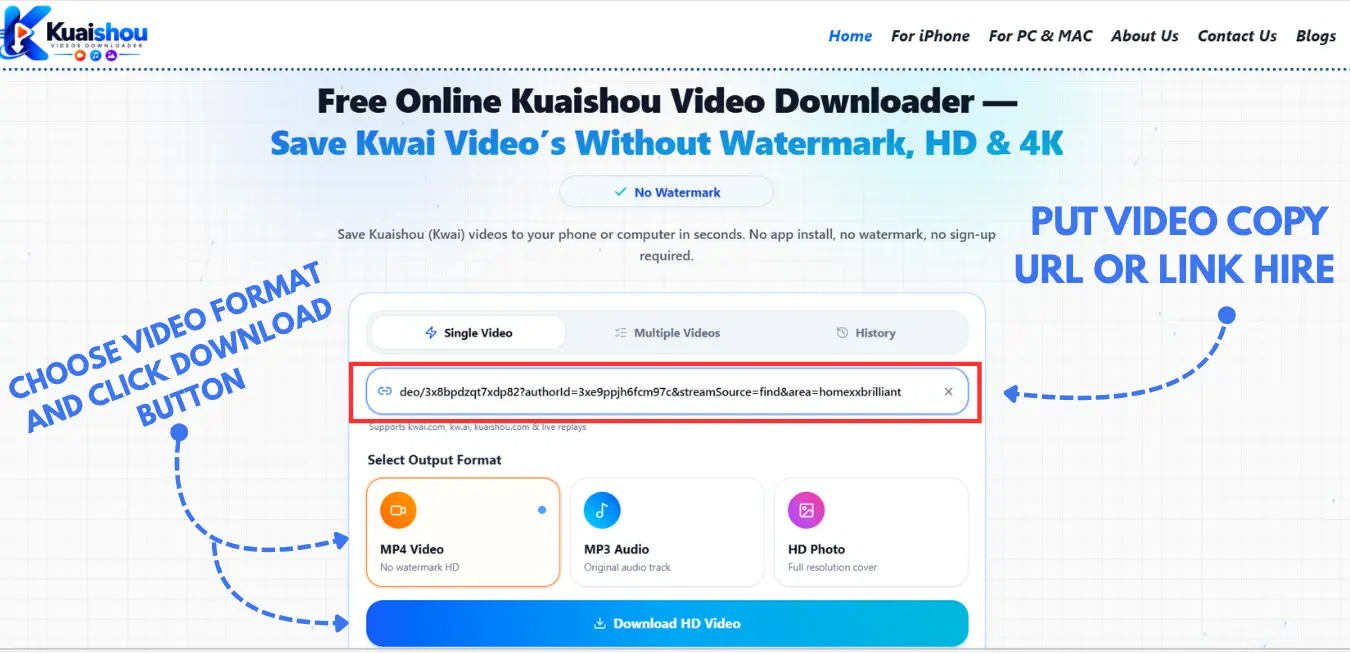
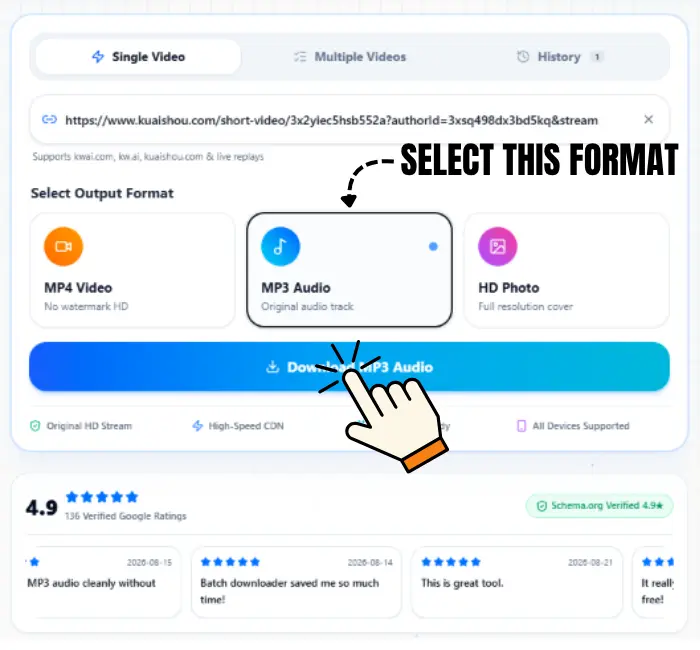
Now you have the copied link; open our Kuaishou Audio Downloader, paste the link into the box on the homepage, and click Download. It will take only 5 seconds to fetch your video.

- 3
Step 3: Select MP3 and Download
Now, when your video is processed, you will see formats; just select the MP3 format and click Download. Your audio will automatically download to your local storage.


Why MP3 Works Better
MP3 has been around for a long time, and it works everywhere without any issues. Moreover, it works better on all phones, and people are used to it because every phone can support it.
-
1Plays everywhere: It can be played on every phone, computer, car stereo, and speaker that can play MP3.
-
2No special apps needed: You don’t need any other app to play it; simply open the file.
-
3Smaller file size: MP3 files take up a little space as compared to other formats.
-
4Easy to share: You can share it with anyone without any issue, and it plays smoothly without any “I can’t play this” replies.
-
5Works with editing tools: MP3 can easily be used by editors without any headaches.
Because of these features, almost every person prefers MP3 as compared to M4A or WAV, especially when the goal is a small file with a reliable bitrate.
Audio Format Comparison: MP3 vs M4A vs WAV vs OGG
Here is the complete comparison table showing which format is best for use. MP3 is the universal choice, while M4A, built on the AAC codec, offers slightly better quality at the same file size on Apple devices.
| Format | File Size | Audio Quality | Best Device | Best Use Case |
|---|---|---|---|---|
| MP3 ✅ Best | Small | Good (lossy) | All devices — universal | Ringtones, offline listening, general use |
| M4A (AAC) | Small | Slightly better | Apple, modern Android | iPhones, iPads, modern players |
| WAV | Very large | Lossless | PC, professional DAWs | Audio editing, production work |
| OGG | Small | Good | Desktop only | Gaming, web apps |
Bottom line: I have personally used MP3, so that’s why I will suggest you use MP3 because it works everywhere, files are small, which takes up little local storage, and can be played smoothly.
Free Tools to Convert Audio to MP3 (Our Top Picks)
If you want to convert your file to a different format, here are the best free and working tools that you can use to convert your file to MP3 for free.
-
1Our Own Tool: Our own tool is the easiest option compared to all; simply grab the audio from Kuaishou and select MP3 using our free online tool. Our tool provides you with a fully converted MP3, so you don’t need to use a separate platform for converting.
-
2Online Audio Converter: Simply upload your file, pick MP3, and hit the download button.
-
3CloudConvert: Fast and free, which works almost for every format and codec.
Already Have an M4A File?
If you have already downloaded a Kuaishou audio file as M4A from somewhere else and you want to convert it to MP3, you don’t need our tool for that; just follow these steps, and you can convert your audio.
-
1Open VLC Media Player on your computer.
-
2Go to Media → Convert/Save.
-
3Click Add and select your M4A file.
-
4Click Convert/Save, then choose MP3.
-
5Pick the local storage location where you want to save your file and click Start.
Batch Downloading Multiple Audio Files
There are a lot of audio downloader tools that let you download one at a time by pasting the link and downloading, but if you want to save several sounds or audio files, downloading one by one takes a lot of time.
Our free Kuaishou & kwai video downloader offers you batch downloading, through which you can paste multiple URLs at the same time, and after processing, you can select MP3 and download them all together in just one batch.
MP4 vs MP3: Why Audio-Only Is Often the Smarter Choice
Here is the complete table through which you will learn about MP3 and MP4.
| Feature | MP4 (Full Video) | MP3 (Audio Only) |
|---|---|---|
| File size | Large | Small — a fraction of the video size |
| Storage used | Fills up space fast | Barely noticeable |
| Playback | Needs a video player/screen | Plays anywhere, even with screen off |
| Best for | Watching the full clip | Music, voiceovers, ringtones, background listening |
| Sharing | Larger files, slower to send | Small files, sends instantly |
| Data usage | Higher | Lower — matters if you’re on a limited data plan |
Bottom line: If you want a song or a voiceover, then MP3 is the best choice because it gives you exactly what you want, and it doesn’t take up much local storage; you can play it smoothly without any issue on every device.
Downloading Kuaishou Audio on iPhone
-
1Firstly, open Kuaishou or Kwai, find your video, tap Share and Copy Link.
-
2Now open Safari and go to kuaishouvideosdownload.in.
-
3Paste the URL into our downloader, after processing, select MP3, and tap Get Download Link.
-
4After tapping Download, your file automatically goes to your Files app.
-
5Last step: Open Files, find the audio file, and you can play it and also move it to your Music library.
Downloading Kuaishou Audio on Android
-
1Open Kuaishou or Kwai, find your video, and tap Share → Copy Link.
-
2Open Chrome and go to kuaishouvideosdownload.in.
-
3You have the copied link, so paste it into the input box. After it processes, select MP3 and tap Download Link.
-
4After tapping Download, your file automatically goes to the Downloads folder in your local storage.
Creative Ways to Use Your Extracted Audio
You can use the extracted audio in different ways, as given below.
Custom Ringtones (Android & iPhone)
Android: If you want to set up a ringtone on Android, move the MP3 to the ringtones folder, go to Settings, then Sound, then phone ringtone, and select it.
iPhone: For iPhone, you need the ringtone in M4R, not MP3, so simply use GarageBand, which is free, trim to under 30 seconds, and then export it as a ringtone to Settings.
Enhancing Edits in CapCut/Premiere Pro
You can use the MP3 in your edits for a background track, sound effect, or as a voiceover without any conversion because these content creation tools support MP3 natively.
Building an Offline Music Library
You can save your favourite songs and audio clips that you downloaded from Kuaishou or Kwai to a folder in your local storage where you can listen to them without any data.
Why Our Downloader Is the Best Choice for Kuaishou Audio
| Feature | Our Kuaishou Video Downloader | Typical Tool |
|---|---|---|
| Direct MP3 output | Yes | Often M4A only, needs a second converter |
| Batch downloading | Yes | Rarely supported |
| No login required | Yes | Sometimes required |
| Cost | Free | Varies |
| Data stored | Nothing, no cloud storage or logs kept | Varies by tool |
Legal & Safety: What You Need to Know
Downloading is the easy part, but there are some boundaries you need to know, which most of the people don’t know; here is what you need to know.
Copyright and Fair Use
If you are saving the audio for your personal use, such as offline listening, a private ringtone, or background music, or using the audio for your personal edit, this is totally fine, but if you are using the audio commercially and claiming it as yours, this is against Kuaishou’s Terms of Service and can raise copyright and intellectual property concerns. If you want to use someone’s audio, ask the original content creator for permission first.
Staying Safe While Using Online Tools
You should not use any site before checking it out. Here are a few habits that will keep you safe:
-
Always use one site after checking the reviews and do a bit of research before pasting the link into it.
-
Always stay away from fake download buttons. Some websites have a lot of ads running around their download button so that you can click on an ad instead.
-
A real tool will never ask for your email, phone number, or payment info to give you an MP3. If it asks, close the site.
-
Most importantly, always keep antivirus software active on your device when downloading from the site for the first time to stay safe.
Privacy
Always remember the tool’s job is to fulfil your needs; what you want, they should not have any concern with your personal details, email, or bank information. If a site is asking for it, close the tab and use another free, secure Kuaishou video downloader.
What Not to Do
Some important points you should keep in mind:
-
Do not download someone’s audio to sell for personal gain.
-
Always give credit to the original creator. Do not remove the original creator’s name.
-
Downloading in bulk to post them somewhere else is a copyright violation, which can get you banned and flagged from the platform completely.
Bottom line: If the audio is yours, you can use it everywhere without any permission, but if the audio is someone else’s, always remember: keep it personal, give credit to the original creator, and you will be safe.
Troubleshooting Common Audio Download Issues
Here are some troubleshooting problems that a user might face, and the fixes also.
No Audio Option / Downloaded File Has No Sound
-
Check the original video: Some Kuaishou videos are uploaded without any sound. That’s why if your video has no sound, that means the original video doesn’t have any sound.
-
Refresh and try again: Sometimes the audio option on the tool disappears. This is because of a temporary glitch; simply refresh the page and paste the URL again.
-
Check your device volume: Sometimes your phone or computer volume is muted. Check it out first before assuming the file is broken.
Audio Quality Sounds Bad or Distorted
-
Check the source: If the original video audio was uploaded in low quality, after extracting, you will get the same file because our Kuaishou video downloader always provides you with the same file as it was posted.
-
Avoid re-compressing: If you convert the file yourself, avoid low bitrates (like 96kbps), since that can make quality worse. Always use 192–320kbps for the best result.
-
Try re-downloading: Sometimes the file gets corrupted while downloading. Just delete that file and download the fresh video.
Can’t Find My Downloaded File
-
Check the right folder for your device: On Android, you will always find your video in the Downloads folder, and on iPhone, if you save through Safari, you will find it in the Files app.
-
Check your browser’s download history: If you cannot find the file, most browsers keep a small icon or menu on the top right which lists your recent downloads.
-
Search your device: If you cannot find the file, just search “MP3” in your device’s built-in search. Sometimes the file lands somewhere else in your local storage.
Download Link Expired
-
Paste the link again: Downloaded links are generated fresh every time and expire after a few minutes for security reasons. That’s why the link does not work anymore.
-
Copy the URL again from Kuaishou: If you want to use the same link again to download the current video, go back and copy the same link again from Kuaishou.
-
Clear your browser cache: If the link always fails, clear the cached data, since old cache can sometimes interfere with a link that would otherwise work fine.
File Downloaded as M4A Instead of MP3
-
This is normal, not an error: Kuaishou stores audio in M4A/AAC format — a different audio codec than MP3 — so some tools give you that by default.
-
Use the MP3 option if the tool offers one: Our downloader provides you with the option to choose MP3 at download time, so you skip the conversion permanently.
-
Convert afterward if needed: If you have an M4A file already on your device, you can use the mentioned converters that will do your work in just seconds.
Frequently Asked Questions
Conclusion
Now, through this complete guide, you know how to save Kuaishou audio and turn it into an MP3 for free and quickly. Here is the short recap on how to download the audio. Just paste your Kuaishou or Kwai link into our Kuaishou video downloader; our tool will fetch the audio track straight out as an MP3. No file uploads to sketchy sites, nothing to install, no risk to your device. Copy, paste, download, and your audio is ready in seconds — for offline listening, ringtones, or your next edit.
Update Log
Guide reviewed and confirmed as accurate against current Kuaishou/Kwai app behavior. Added the batch audio downloading section and expanded creative-use tips.